Technology
15 min read
Unlock Samsung Phone Productivity with Good Lock
Android Police
January 18, 2026•4 days ago
AI-Generated SummaryAuto-generated
Samsung users can significantly enhance phone productivity with the Good Lock app. This official Samsung tool allows deep customization of the One UI interface, enabling users to reconfigure multitasking, notifications, lock screens, and app layouts. Modules like Home Up and NotiStar offer advanced features, transforming the device into a personalized productivity powerhouse by streamlining common tasks.
I have been a Samsung user for years, but I just realized I was only using about 50% of what this phone can actually do.
For months, I struggled with small friction points — too many taps to open my favorite apps, a cluttered notification shade, and a multitasking system that felt slow.
That all changed when I discovered Good Lock.
It’s not just a customization tool; it’s a productivity engine that lets you re-engineer how your phone works. Here is why I can’t believe I waited this long to press Install.
Good Lock is a power user’s secret
For the longest time, I completely ignored Good Lock.
I tried it a couple of times, saw it mentioned in tech forums, and figured it was just another minor customization tool for people who like changing their icon colors or font style.
I was hesitant to install it because I have always been a ‘stock software’ person. I thought adding another layer of customization would bloat the system, drain my battery, and eventually slow down my device.
I couldn’t have been more wrong.
Before I go over my favorite features, let’s have a quick word on Good Lock.
In the simplest terms, Good Lock isn’t just an app; it’s an official software playground built by Samsung engineers.
It allows you to unlock advanced features that are already baked into your phone’s code but hidden from the standard Settings menu.
You can think of it as the pro mode for your One UI interface.
Here is the part that really made me appreciate my Galaxy: This isn’t available on any other Android device. You won’t find this on a Google Pixel, a OnePlus, or an iPhone.
Because it’s made by Samsung specifically for One UI, it’s deeply integrated into the kernel.
It doesn’t run as a heavy third-party launcher that sits on top of your software; it modifies the software itself.
Also, Good Lock is modular by design. You only download the modules you actually need.
If you only want to fix your notifications, you download NotiStar. If you don’t care about the lock screen, you don’t download LockStar.
It stays as lightweight as you want it to be.
Going over high-impact modules
The real magic of the Good Lock system is how it turns your phone from a standard device into a tool built specifically for you.
Modules like Home Up and LockStar break down the walls of the usual settings.
Instead of being stuck with the layout Samsung gives everyone, you get to decide exactly how many apps fit on your screen or where your clock and notifications sit on the lock screen.
For anyone trying to stay organized, this is a huge win.
It means you can put your most important work tools right where your thumb naturally rests and cut out those few seconds of searching and scrolling that usually distract us throughout the day.
The recently introduced Display Assistant is another neat add-on where you can control the refresh rate for individual apps and even set the screen timeout for each app.
Meanwhile, One Hand Operation+ adds invisible ‘swipe zones’ to the sides of your screen.
Instead of reaching all the way to the top or bottom of a huge phone, a simple flick from the side can open two apps at once or turn on your flashlight.
And with NotiStar, you have tons of options to tweak every aspect of the notification pop-up.
The productivity hacks
Since I started digging into the specific modules, I have discovered a few productivity hacks that I can’t live without.
For starters, I used Nice Shot to fix one of my biggest mobile recording pet peeves by enabling the selfie video option during screen captures.
Now, if I’m sending a quick tutorial or a feedback video to a colleague, they can actually see my face and reactions while I’m showing them my screen.
The way I move between apps has also changed thanks to Home Up.
I switched my Task Changer to the Grid layout, which lets me see a whole spread of my recently used apps at once instead of just one giant card at a time.
It makes jumping between my browser, notes, and email feel twice as fast because I can spot exactly what I need without all the endless swiping.
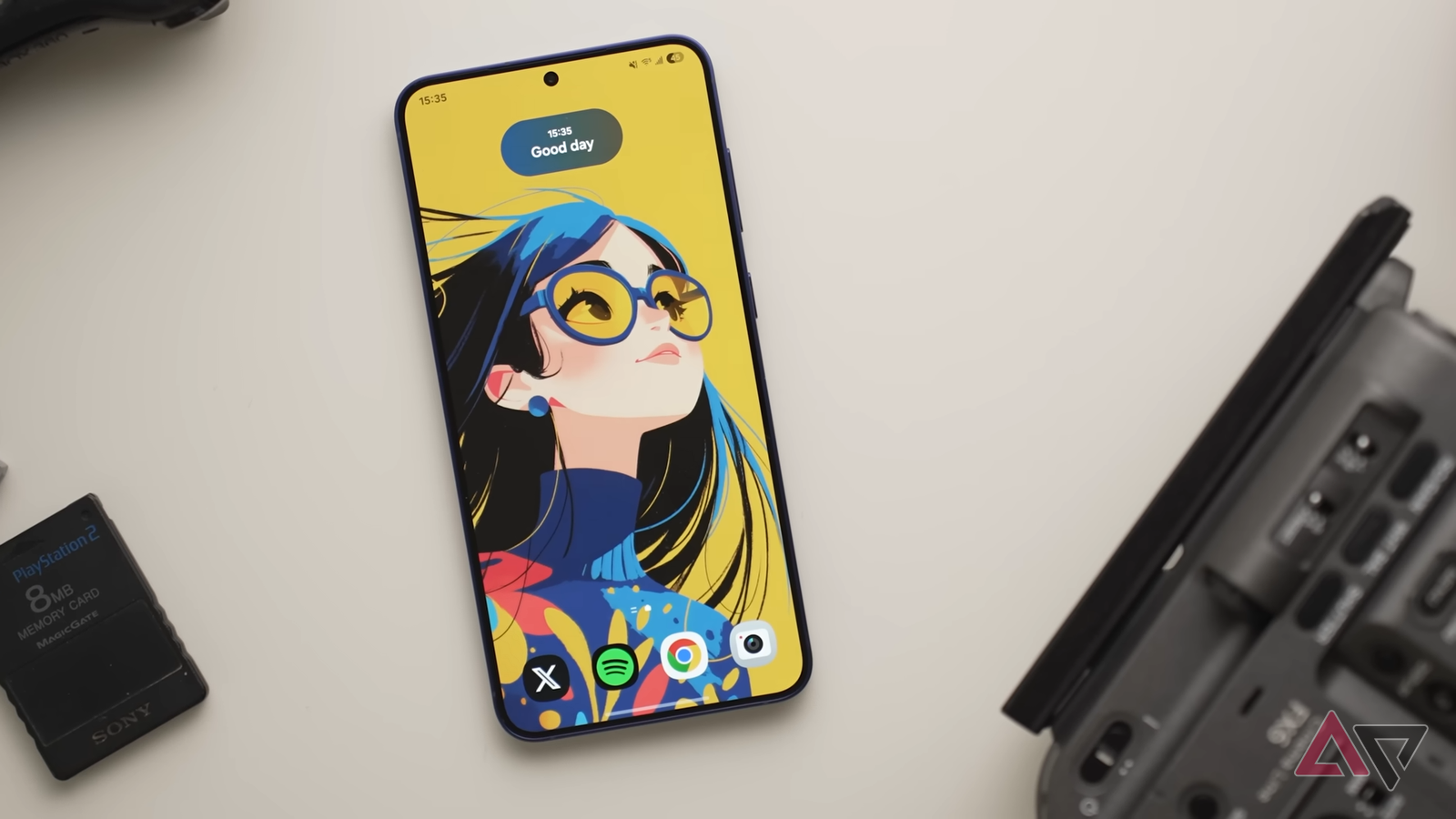
I have also spent a lot of time in LockStar, which turned my lock screen into a full-blown dashboard.
I have added specific app widgets that I need to check at a glance and even threw in some custom stickers to give it some personality.
The best part is, I have barely scratched the surface here. I’m excited to keep exploring these menus and tweaking the settings as my workflow evolves.
Doubled my mobile productivity
A phone is only as ‘smart’ as you make it. It’s rare to find a hidden gem that is actually an official product from the manufacturer, but Good Lock is exactly that.
It fixed every minor frustration I had with my workflow and turned my Samsung into a productivity powerhouse.
If you are serious about getting things done on the go, this isn’t just an app — it’s a necessity.
Rate this article
Login to rate this article
Comments
Please login to comment
No comments yet. Be the first to comment!