
Technology
7 min read
How to Easily Hide the Copilot Icon in Microsoft Edge
Sportskeeda Tech
January 19, 2026•3 days ago
AI-Generated SummaryAuto-generated
Microsoft has introduced a feature allowing users to hide the Copilot icon from the Microsoft Edge toolbar. This update addresses user requests for greater control over the AI feature's visibility. The new option, available in Edge version 144.0.3719.82, can be accessed through browser settings, providing users with a step-by-step process to remove the icon.
Microsoft wants its users to try the new Copilot AI features, but many look for ways to disable or hide them. In recent years, the Copilot icon was added to the sidebar. After some outcry, the company added an option to remove it.
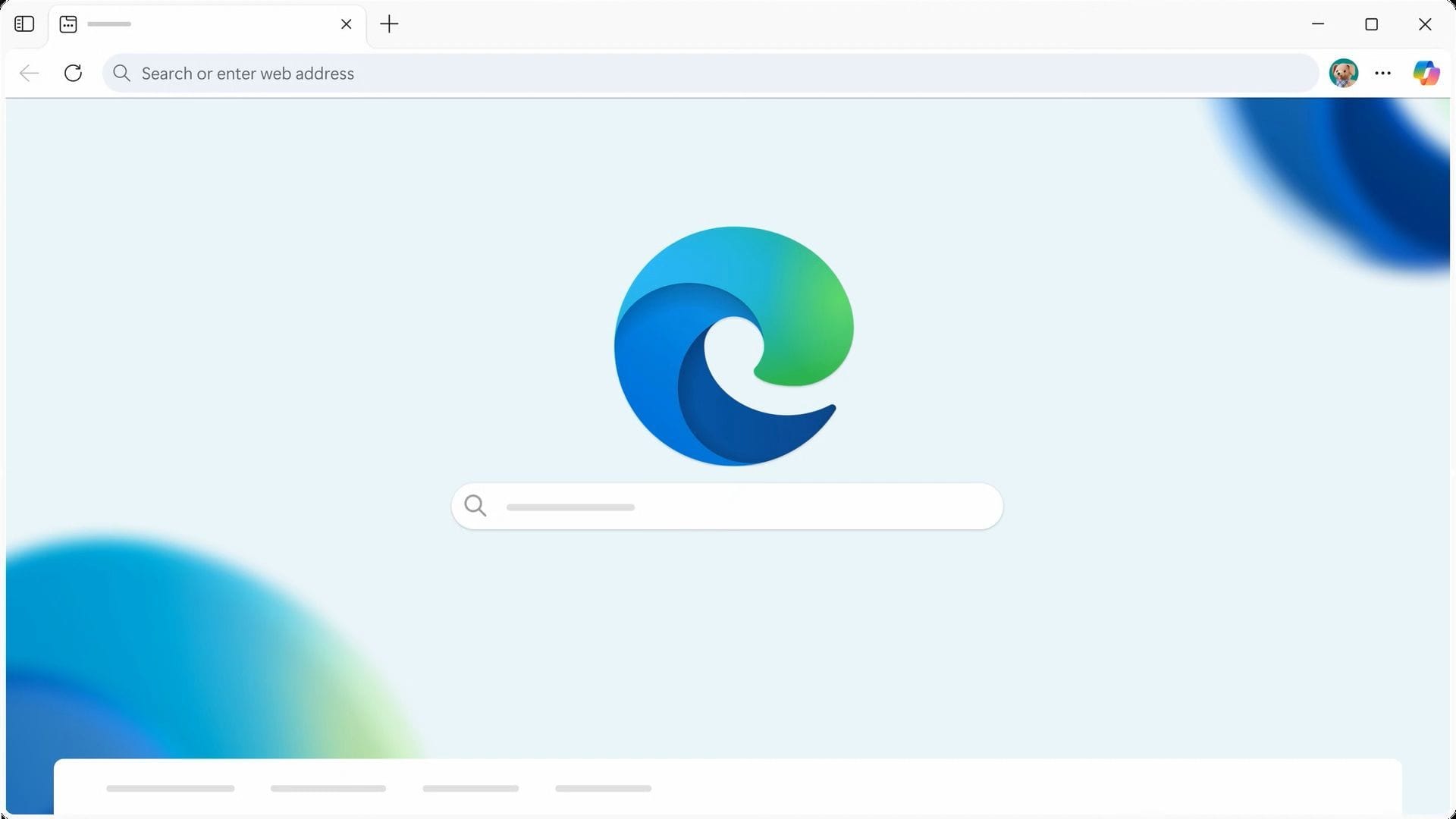
Nonetheless, there was no option to disable/hide the Copilot icon from the toolbar (beside the bookmarks or history icons) until now. In the latest Edge version 144.0.3719.82, Microsoft finally added the option to hide/disable the Copilot icon from appearing on the toolbar.
In this article, you will find a step-by-step guide on how to hide the Copilot icon in Microsoft Edge's toolbar.
How to hide the Copilot icon in Microsoft Edge's toolbar
Depending on your browser settings, you may need to follow either one or both of the methods to completely disable/hide the Copilot icon in Microsoft Edge's toolbar. However, ensure that your browser is updated before you begin. Here are the two methods:
Method 1: How to hide the Copilot icon in the toolbar
Follow these steps to hide/disable the Copilot icon from appearing on the toolbar:
Locate the Copilot toolbar icon on the top-right corner of the browser and right-click on it.
Click on Hide Copilot from the sub-menu, but it's not that easy.
A new settings page will open, where you will find the option: Show Copilot button on the toolbar.
Turn off that toggle and restart the browser completely.
Read more: Windows 11 January update brings compatibility changes and bug fixes
Method 2: How to remove the Copilot Sidebar icon
Follow these steps hide/disable the Copilot Sidebar icon:
Click on the three-dotted button in the top-right corner of the browser.
Next, click on Settings from the menu.
Next, click on the Hamburger Menu button from the top-left corner of the tab and select Sidebar.
In the new options page, toggle off the Show sidebar button and Enable Edge Bar options.
Next, click on Copilot below and toggle off the Show Copilot button on the toolbar option, if it's not already toggled off.
You should restart the Microsoft Edge browser, and the Copilot icon should disappear completely.
Read more: Windows 11 26H1 version will release with the new Snapdragon X2 laptops, here's everything new
Rate this article
Login to rate this article
Comments
Please login to comment
No comments yet. Be the first to comment!