
Technology
10 min read
Unlock Garmin's Hidden Gesture Control for Instant Home Access
TechRadar
January 19, 2026•3 days ago
AI-Generated SummaryAuto-generated
Garmin watches feature a hidden "palm gesture" for touchscreen control. Briefly covering the watch face with your palm returns it to the home screen, bypassing multiple menu taps. This gesture also functions as a touchscreen lock during activities on compatible models, preventing accidental input. This quick, often overlooked feature enhances usability for Garmin users.
Garmin devices have a ton of activity and watch settings to go through and tweak, even when you’re not actually exercising. From building new workouts to choosing new watch faces, checking your Body Battery and Readiness scores to looking at live progress of your stock market options, there are all sorts of things you can do on the best Garmin watches.
Sometimes, when you’re deep in your settings, you need to push the ‘back’ button about half a dozen times to return back to your watch face through the labyrinth of menus one by one, which can be irritating. Technology should be easy, seamless, with a single gesture allowing you to return to the home screen with minimal fuss.
I’ve tested tons of Garmin watches over the years, from the cheapest Vivoactive to the top-flight Garmin Fenix 8, and in the middle of testing GPS accuracy and finding scuba divers to check the dive computer features, and all the rest of it, you occasionally just forget some features are there at all. I wrote about this a couple of days ago with the Gear Tracking feature in Garmin Connect, and a recent conversation reminded me about yet another less well-known Garmin watch trick.
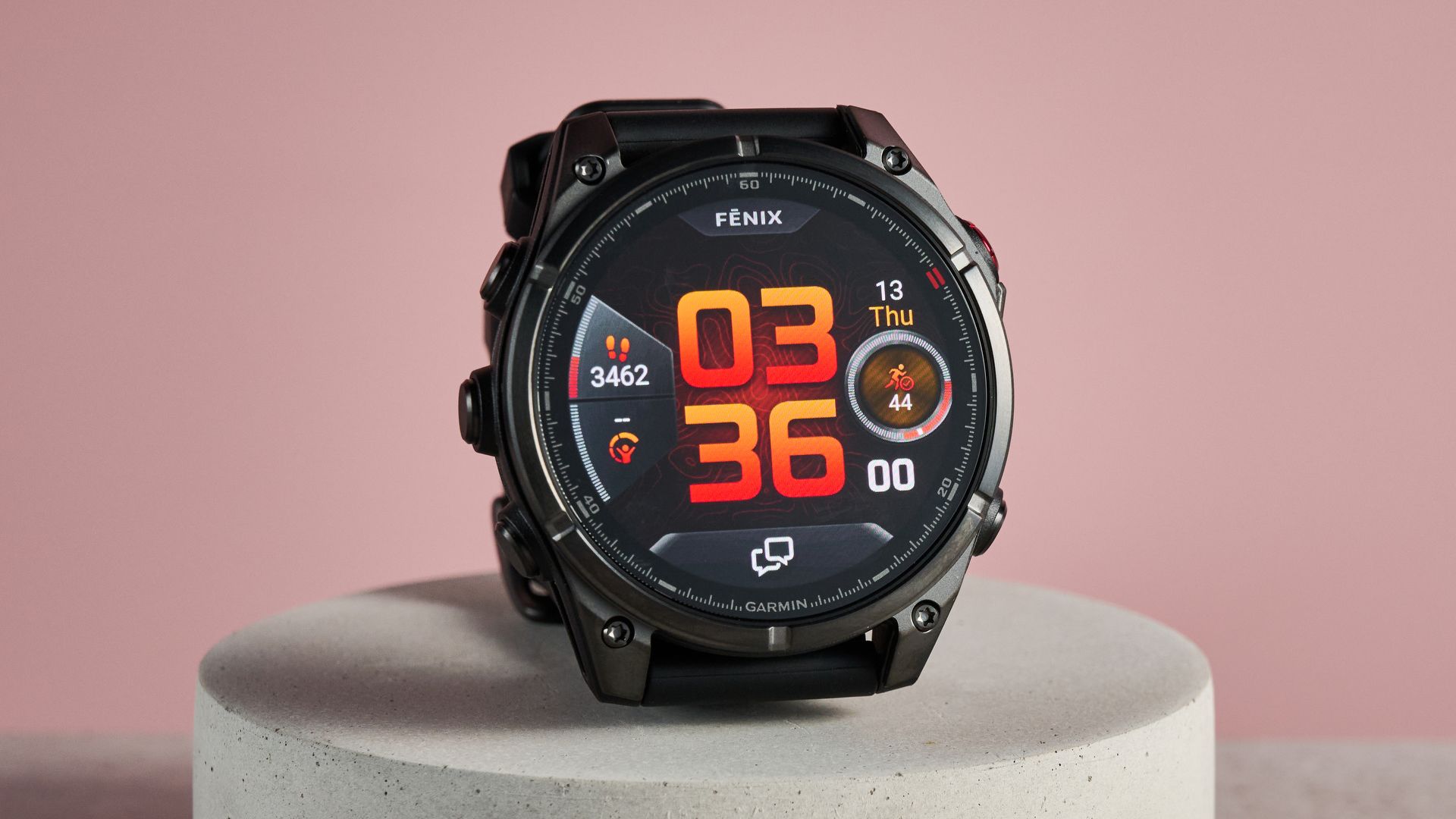
When chatting to TechRadar’s Homes Editor (and former Fitness Editor) Cat Ellis about her new Garmin, she bemoaned the fact that the Lily 2 Active couldn’t perform the classic Garmin touchscreen gesture, which involves a tapping the screen of the watch with your palm, covering the watch face to return it to the home screen. It’s a neat hidden feature on most Garmin watches, not shouted about at all (again, just like Gear Tracking) but a useful timesaver. Garmin calls it the ‘palm gesture’.
The gesture doesn’t work if you’re tracking an activity, but it does have an alternative use. When I used the gesture on my everyday-wear Garmin Venu 4 while tracking a run, it doesn’t return to the home screen – instead, it acts as a touchscreen lock, which prevents any sweat, water or rubbing clothing shifting the watch away from the view you need at that point in your workout. This works on any watch with a touchscreen lock function: the Lily 2 Active doesn’t have one, which is why the gesture doesn’t work.
For watches that do, the palm gesture is simple, clean, effective and easily forgotten about – although fortunately, I’m here to remind you about it.
How to do the palm gesture in Garmin Connect
On a touchscreen Garmin watch, navigate around a few of its many menus and settings in the usual way
To return to the home screen, briefly cover the entirety of the watchface with your palm
The watch will revert to the home screen
Garmin says: “If you want to return to the watch face from any screen (except for while recording an activity), you can press your palm to the entire watch face. This will also turn down the backlight. You can turn on the back light or wake the display by tapping it.”
Follow TechRadar on Google News and add us as a preferred source to get our expert news, reviews, and opinion in your feeds. Make sure to click the Follow button!
Rate this article
Login to rate this article
Comments
Please login to comment
No comments yet. Be the first to comment!