
Technology
13 min read
Effortlessly Transfer Contacts to Your New Android Phone
findarticles.com
January 20, 2026•1 day ago
AI-Generated SummaryAuto-generated
Android now offers faster and more reliable contact transfers to new devices. Built-in Google syncing automatically moves your address book when you sign in with your Google account on the new phone. Alternatively, users can export contacts as a vCard file for manual import. OEM tools also facilitate comprehensive data migration, including contacts, apps, and messages.
Upgrading your phone shouldn’t mean rebuilding your address book from scratch. The good news is that moving contacts to a new Android device is faster and more reliable than ever, thanks to built-in Google syncing, standard vCard exports, and robust OEM tools. Here’s the expert playbook that seasoned Android users and support technicians rely on.
Most Android phones ship with Google services preinstalled, and contact syncing is on by default. That means your entire address book can follow your Google account across devices with minimal effort.
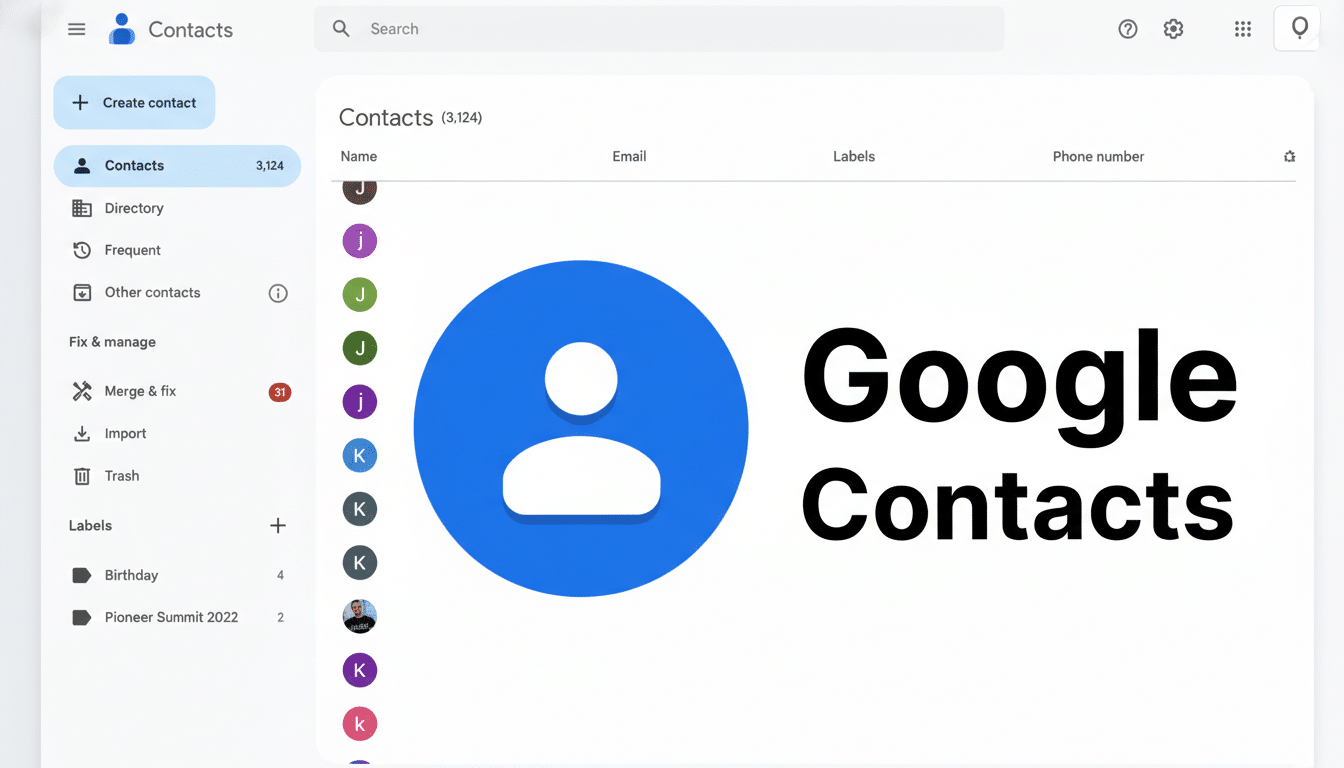
On your old phone, open Settings and find your Google account under Accounts or Passwords & Accounts. Tap Account sync and make sure Contacts is enabled. If you want immediate results, tap Sync now. You can also verify everything at Google Contacts on the web to confirm your entries look right and duplicates are cleaned up.
On your new phone, sign in with the same Google account during setup, or add it later via Settings > Accounts. Within minutes on Wi‑Fi, your contacts populate automatically. Because contact data is compact, even thousands of entries typically sync in minutes and use only a small amount of data.
Google states that synced data is encrypted in transit and at rest, which is why this approach is both quick and secure for everyday users and IT teams alike.
If you prefer a hands-on backup or won’t be signing into a Google account, export your contacts to a vCard file (.vcf), the industry standard for address books maintained by the IETF.
On most devices using the Google Contacts app, open Contacts and go to Fix & manage > Export to file. Name the file and save it to local storage or cloud storage. Move the file to your new phone via Nearby Share, email, a USB cable, or a cloud drive.
On the new phone, open Contacts and choose Fix & manage > Import from file. When prompted, pick your primary Google account as the destination so your contacts sync moving forward. Importing thousands of contacts usually finishes in seconds.
Brand tools can transfer contacts along with apps, photos, and messages in one shot. Samsung’s Smart Switch, Xiaomi’s Phone Clone, and apps from Oppo and OnePlus offer guided, cable or Wi‑Fi migrations that include your address book. These are particularly handy if you’re staying within the same brand ecosystem.
Copying to a SIM card still works on some devices, but it’s limited: many SIMs cap entries, drop contact photos, and ignore labels and notes. eSIMs don’t store contacts at all. Treat SIM storage as a last resort, not a primary backup.
A minute of housekeeping saves headaches later. In Google Contacts, use Merge & fix to squash duplicates and standardize names. Assign labels (Family, Work, Vendors) so groups carry over cleanly. Check the “view” filters in your Contacts app to ensure you’re syncing from the right sources (Google, Exchange, or device-only).
If you keep business contacts in Microsoft Exchange or Outlook, add that account on both devices and enable contact syncing there, too. This keeps work and personal books separated without losing anything during migration.
If contacts don’t appear on the new phone, confirm the toggle for Contacts is on under Settings > Accounts > Google > Account sync. Tap Sync now, then reopen the Contacts app.
Still stuck? In Settings > Apps > See all, find Contacts and Contacts Storage, then Force stop and Clear cache (avoid clearing storage unless necessary). Make sure Battery optimization isn’t restricting Contacts or Google Play services, and that the phone’s date and time are set automatically.
If you’re moving from iPhone to Android, you can export contacts from iCloud as a vCard and import it, or add your iCloud account to the Android phone and sync contacts directly. Many carriers’ in-store kiosks can also perform contact transfers if you prefer a hands-off approach.
For most people, enabling Google Contact sync is the “set it and forget it” solution that prevents data loss during future upgrades. Keep a vCard export tucked away as a belt-and-suspenders backup, especially before trading in or factory resetting your old device. Between the two, moving your address book to a new Android phone is now a five‑minute job instead of an afternoon project.
Rate this article
Login to rate this article
Comments
Please login to comment
No comments yet. Be the first to comment!